
There’s a moment every identity security analyst knows well.
You’ve run a query. The results are back. You’re looking at a list of accounts – some dormant, some over-privileged, some just… suspicious and the question that follows isn’t where is the risk?
You can already see the risk. The question is: What does this actually mean? How bad is it? What should I do first?
That question used to require expertise, context, and time. You’d dig through the query logic, pull up historical data, cross-reference risk scores, and eventually arrive at a recommendation often after a second meeting, a Slack thread, or a ticket to someone who knew the environment better than you did.
Today, that answer is one click away.
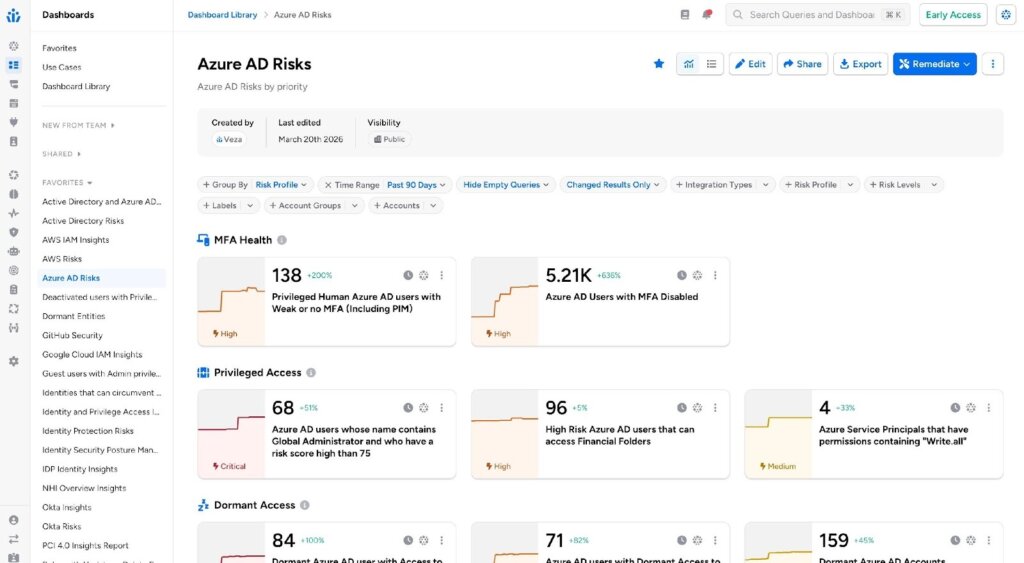
Figure 1: Azure AD Risks dashboard in Veza Access Intelligence, grouped by risk category with trend data and risk levels
Introducing Access AI on Tiles: Intelligence at the Point of Risk
We’ve embedded an AI analyst directly into the Veza query experience.
When you’re looking at any query in Access Intelligence, you can now open Access AI — a conversational, context-aware AI that reads your query, understands your results, and tells you exactly what you’re looking at, why it matters, and what to do about it.
💡 Not in a separate tool. Not in a new tab. Right there, in the same dashboard – the moment you find the risk.
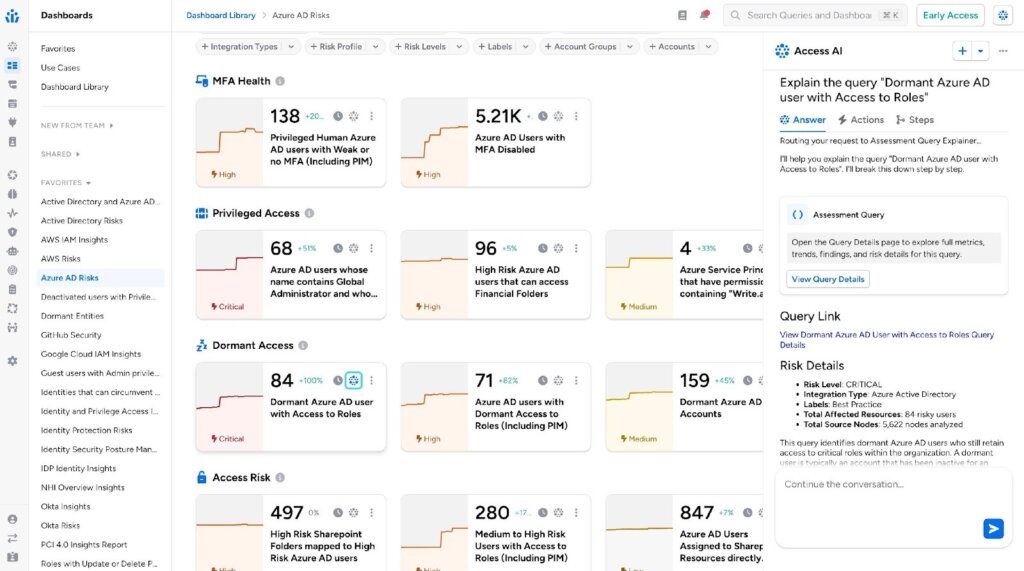
Figure 2: Access AI panel open alongside the dashboard instantly explaining the selected query without leaving the workflow
What Access AI Tells You
Explains the Query in Plain Language
Not everyone who needs to act on identity risk wrote the query that surfaced it. Security analysts, compliance leads, IT managers – they need to understand what a query is measuring before they can act with confidence.
Access AI reads the query logic and translates it: what data it’s pulling, what conditions it’s checking, what kind of accounts it’s designed to find. In seconds, anyone on your team can understand what they’re looking at.
Breaks Down the Risk – With the Numbers
Understanding a query is different from understanding the risk it’s exposing. Access AI surfaces the specific risk profile of the results in front of you: the risk level, the integration type, total affected resources, and total source nodes analyzed – all in one structured view.
Then it goes further. It explains the potential security implications in plain language: why dormant accounts with role access are dangerous, what the blast radius looks like, and what makes this finding worth acting on now versus later
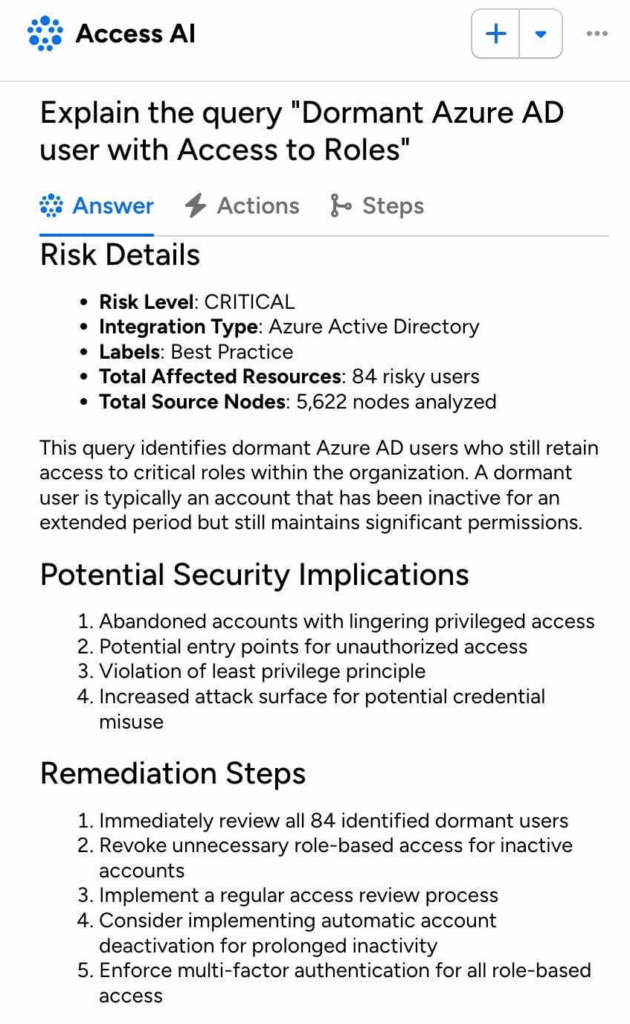
Figure 3: Access AI – Risk Details, Potential Security Implications, and Remediation Steps for the selected query
Surfaces Trends
A snapshot is useful. A trend is actionable.
Access AI contextualizes your current results against historical patterns. Is the risk count holding steady or climbing? Has your infrastructure grown and with it, the surface area for dormant accounts? Are there suppressed risks that need attention?
In the example above, Access AI flagged a consistent risk count of 84 risky users across the past week, infrastructure growth from 5,603 to 5,622 source nodes, and zero suppressed risks meaning everything identified is still live and unresolved.
📈 Trends turn a one-time finding into an ongoing signal and ongoing signals drive programs, not just tickets.
Recommends What to Do Next
Based on the query, the risk profile, and the trend, Access AI recommends a prioritized set of remediation steps. These aren’t generic best practices they’re specific to what the query found.
For dormant Azure AD users with role access, Access AI recommended:
- Immediately review all 84 identified dormant users
- Revoke unnecessary role-based access for inactive accounts
- Implement a regular access review process
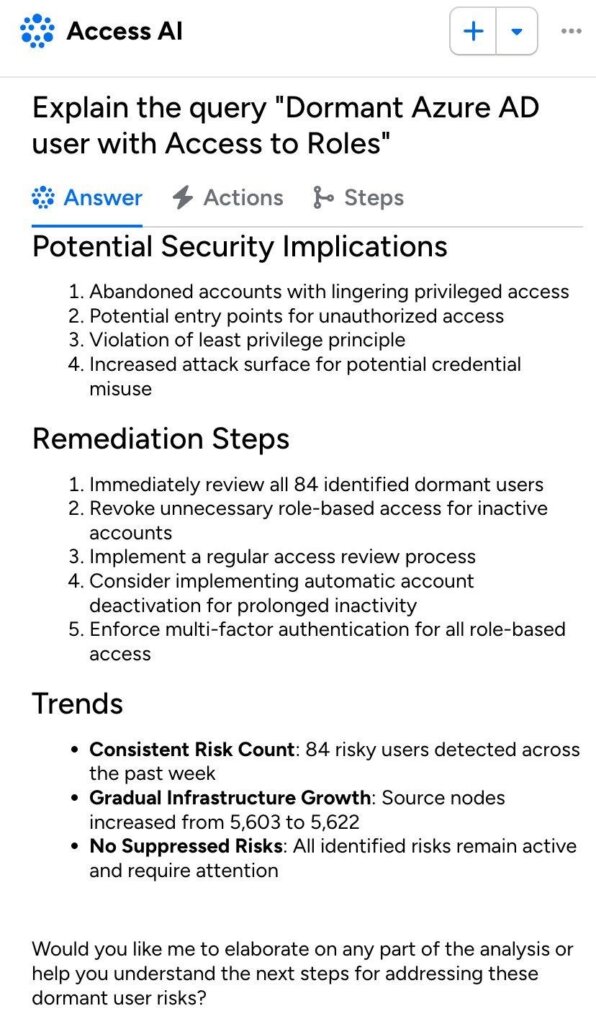
Figure 4: Access AI – Trends section showing risk count stability, infrastructure growth, and suppression status
It’s a Conversation, Not a Report
Here’s what makes Access AI different from a summary panel or a static risk score: it remembers.
Ask it a question about your query results. Follow up with a more specific one. Push back on a recommendation. Ask what happens if you don’t act. Access AI holds the context of the conversation and responds accordingly- it’s the closest thing to having an identity security expert sitting next to you as you work through your findings.
Example questions you can ask Access AI:
- What is this query measuring and why does it matter?
- Which of these accounts are the highest priority to address?
- Has this risk been growing over the past 90 days?
- What can I do immediately vs. what needs a review cycle?
- Elaborate on the potential security implications for these dormant accounts.
The Action Available: Go to Query Details
Access AI is designed for understanding not for taking action directly at this time. Once you have the full picture from the AI, there is one action available from the Access AI panel: navigating to the Query Details page.
→ Click “View Query Details” to open a full deep-dive – trend chart, affected account list, risk scores, query metadata, and the Access AI panel stays open alongside it.
What you see on the Query Details page is everything you need to act with confidence: a 30-day trend chart showing risk count stability over time, the full list of affected accounts with individual risk scores, integration and datasource IDs, query metadata including who created it and when it was last updated, and the Access AI panel still open on the right, ready for follow-up questions as you review the data.
In the example below, the Query Details page for “Dormant Azure AD user with Access to Roles” shows 84 affected users, a flat trend line confirming the risk has persisted consistently, a Critical risk level, and individual user risk scores ranging from 79 to 89 giving reviewers exactly what they need to prioritize who to address first.
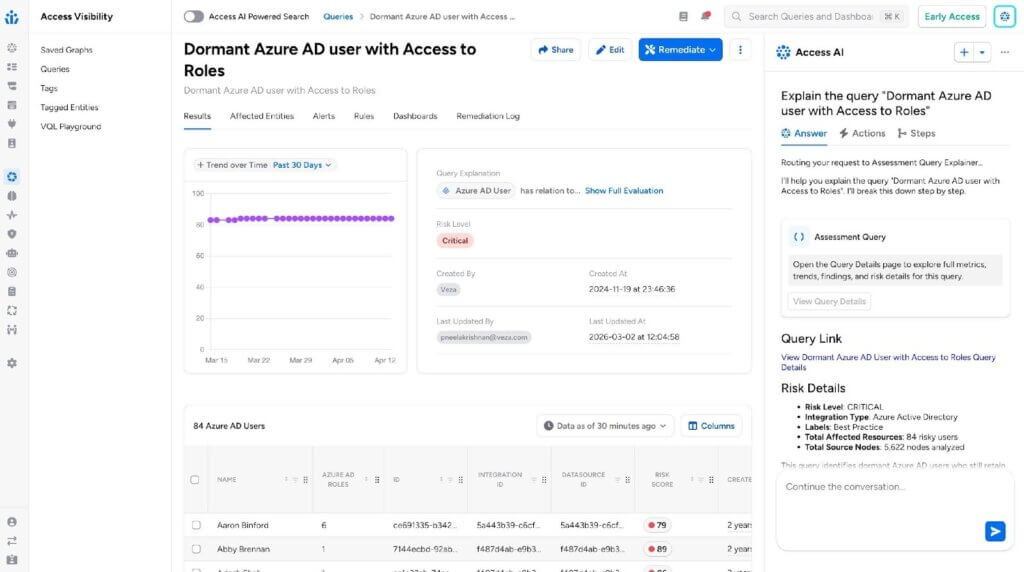
Figure 5: Query Details page – trend over time, full affected account list with risk scores, and Access AI panel open for continued conversation
This is intentional. Access AI gives you the context to make a confident decision. The Query Details page gives you the complete data to act on it. From there, you can initiate remediation through Veza Actions – disabling accounts, launching access reviews, or triggering tickets with the full audit trail Veza provides.
The workflow is clear and deliberate: understand first, then decide, then act.
① See It
Access Graph queries surface risk across your environment
② Understand it
Access AI explains the query, risk profile, implications & trends
③ Decide
Ask follow-ups, then click View Query Details for full data
④ Act
Use Veza Actions to disable, review, or ticket with full audit trail
The Gap This Closes
Veza was built to give teams unmatched visibility into identity risk. But visibility without interpretation creates its own bottleneck: the analyst who has to translate findings into decisions for everyone else on the team.
Access AI removes that bottleneck. It doesn’t replace the analyst but it makes every person looking at a query result as informed as one. Faster decisions, better-calibrated responses, and a security posture that doesn’t depend on who happened to be in the room when the risk was found.
From Seeing Risk to Understanding It
Last month we launched Veza Actions to disable account from in-product – bringing remediation directly into the query experience so you could disable risky accounts the moment you found them. Access AI is the layer that comes before the action: the why, the how bad, the what’s changing, and the what next – delivered in plain language, in context.The log is searchable, and persistent – giving compliance teams the evidence they need without any additional instrumentation.
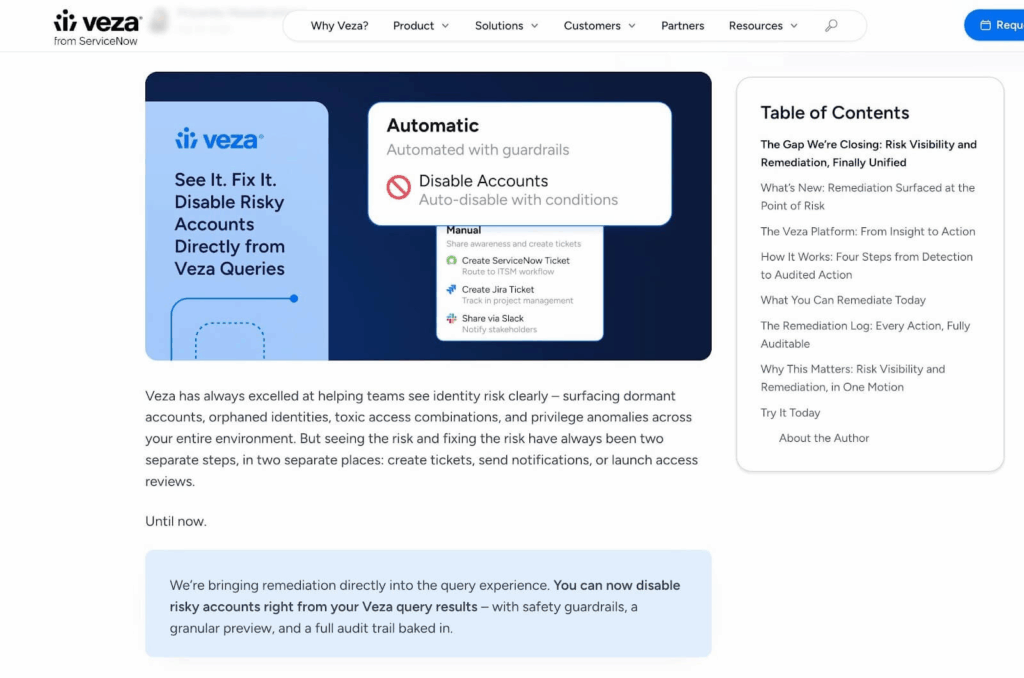
Figure 6: Veza Actions – disable risky accounts, create ServiceNow or Jira tickets, or share via Slack directly from query results (launched March 2026)
Access AI and Veza Actions are two halves of the same motion. Actions gives you the power to remediate. Access AI gives you the confidence to know when and why to use it. Together they close the loop that identity security teams have always struggled with: the gap between finding a risk and doing something about it.
See it. Understand it. Decide. Then act. That’s the complete motion – now fully connected.
Try Access AI on Dashboard Tiles Today
Available now for Veza customers in Access Intelligence. Open any query, launch Access AI, and ask your first question.
- Explore Veza: veza.com/product
- Schedule a demo to see it live
- Already a customer? Click Ask AI on any query.
The risk has always been there. Now you’ll always know what it means.